Road On Road
Procedural road networks with junctions, ramps and bridges

Road On Road turns curves into complete, photorealistic road networks. Draw a road by clicking on your terrain, and Road On Road builds the pavement, lane markings, curbs, gutters, sidewalks, medians, lights and street furniture along it. Where roads meet it builds the junction: curb returns, sidewalk corners, crosswalks, stop lines, turn arrows and traffic signals that face the right way. Where a road leaves or joins another at a shallow angle it builds a real merge, with an acceleration or deceleration lane, a taper and a painted gore. Raise a road and it gets an embankment, then piers; take it across a valley and a bridge appears.
Every road is its own curve with its own settings, so each section of a network can be a different road: a six-lane highway, a boulevard with a planted median, a city street with parking, a cobblestone lane or a dirt track. Lanes in each direction, lane width, line styles and colors, surface, curbs, sidewalks and pavers, median, supports, bridge type and extras are all editable per road, and roads of different widths that meet end to end blend smoothly.
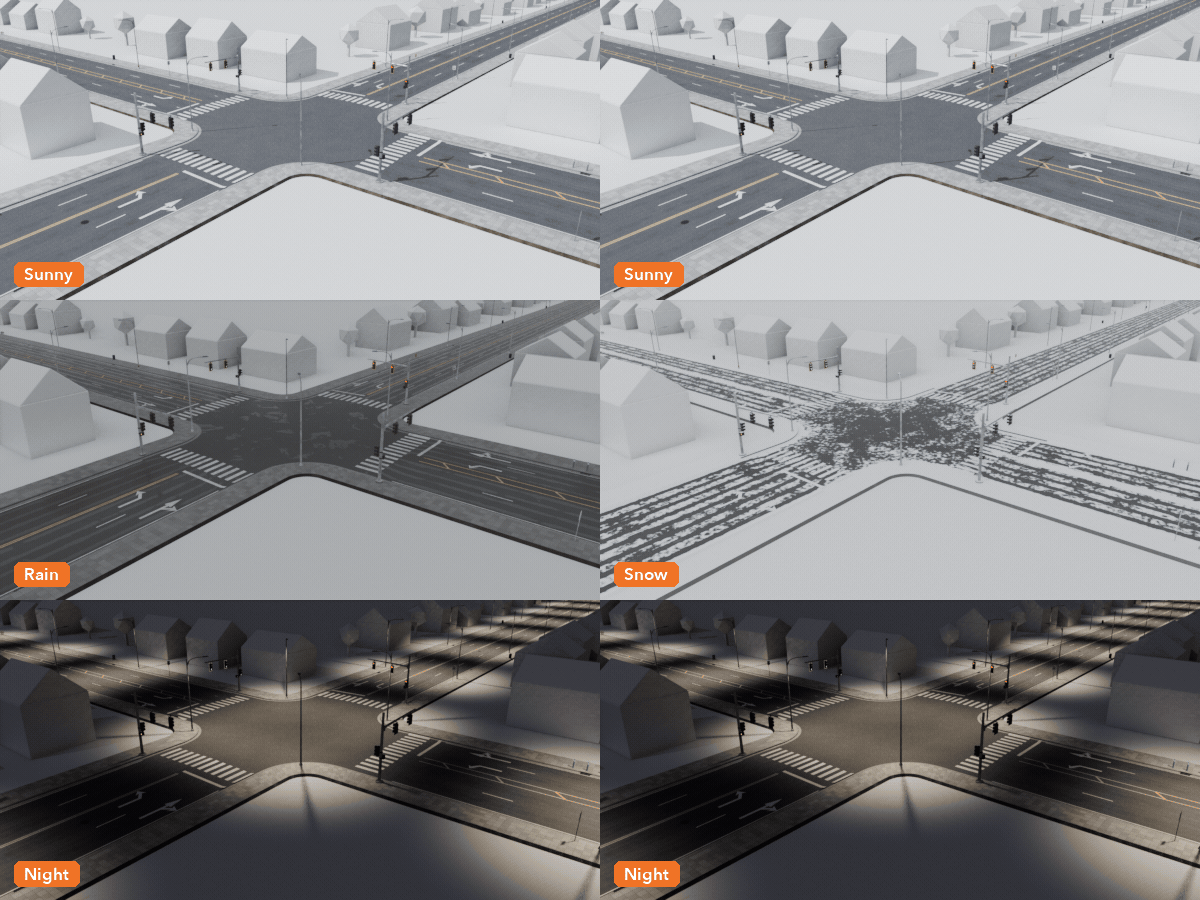
Weather is part of the look. Rain makes the pavement wet and reflective, fills wheel ruts and gutters with puddles and animates rain ripples; snow covers curbs, sidewalks and lane edges while traffic clears the wheel tracks, and adds plowed snow banks. Street lights and signals glow at night, and the signals cycle through their phases when you play the animation.
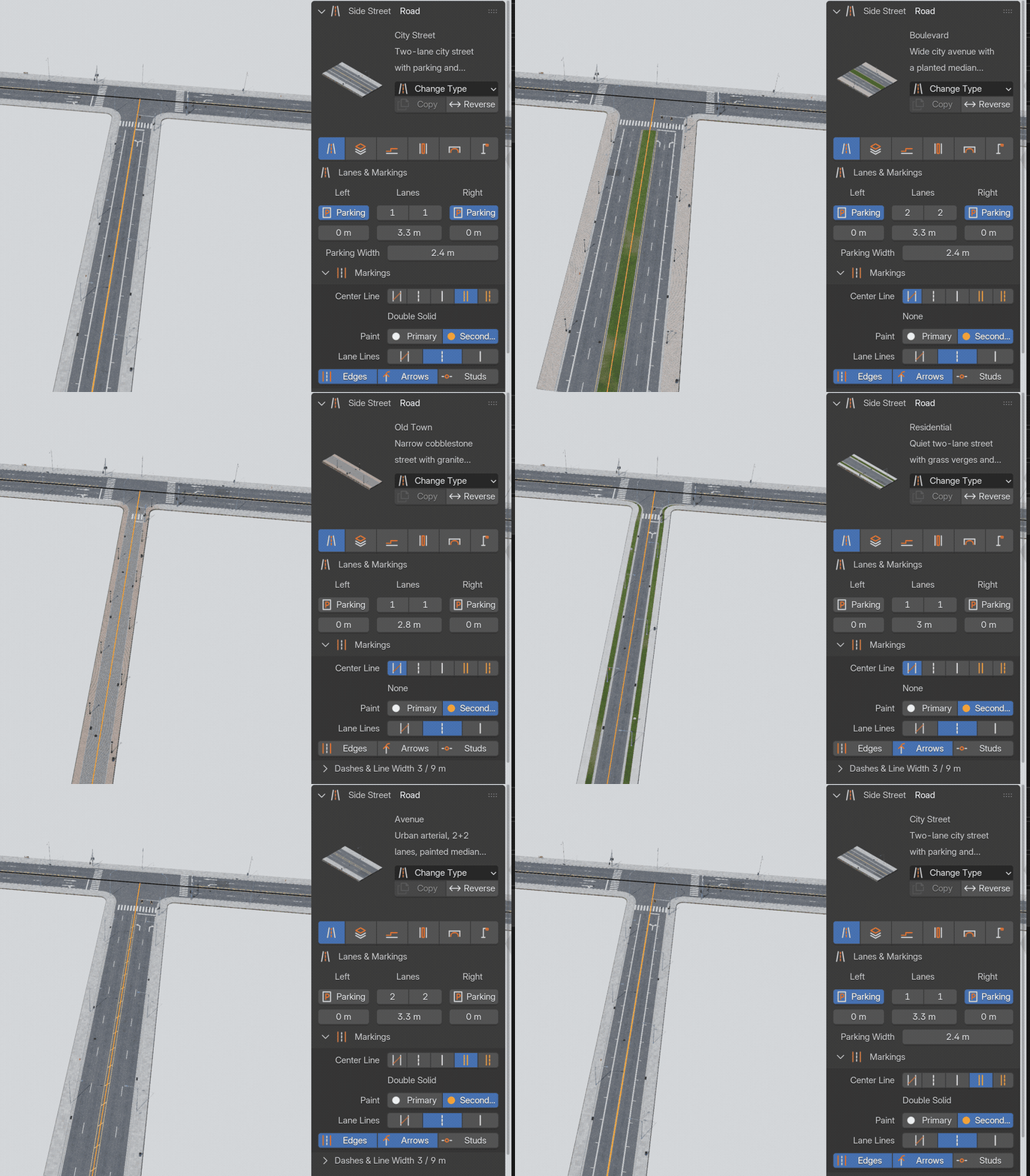
One click changes the road
Pick a road type in the sidebar and the whole road changes: lanes, median, sidewalks, surface and lights. Every setting stays editable.
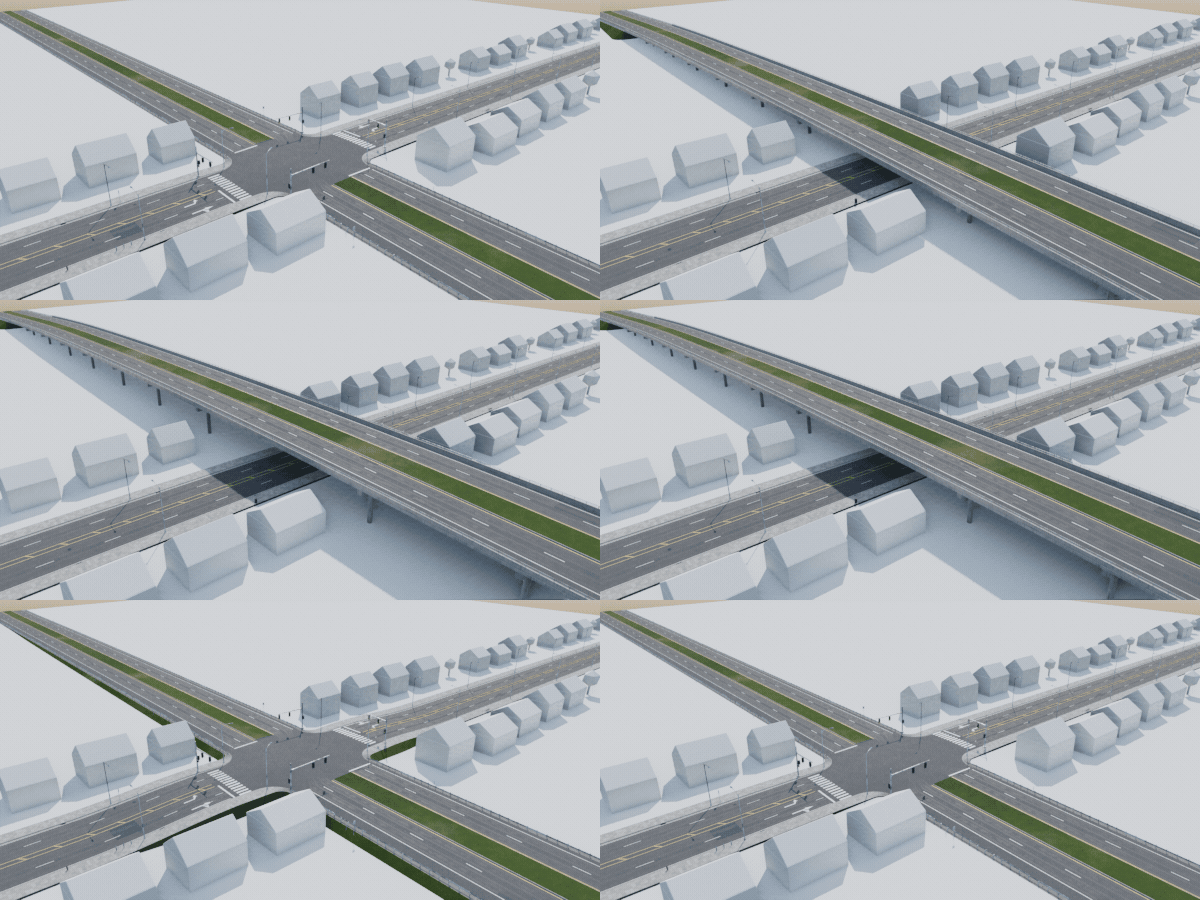
Raise it, get an overpass
Lift a road's points and the crossing turns into an embankment, then a deck on piers that keep clear of the road below.
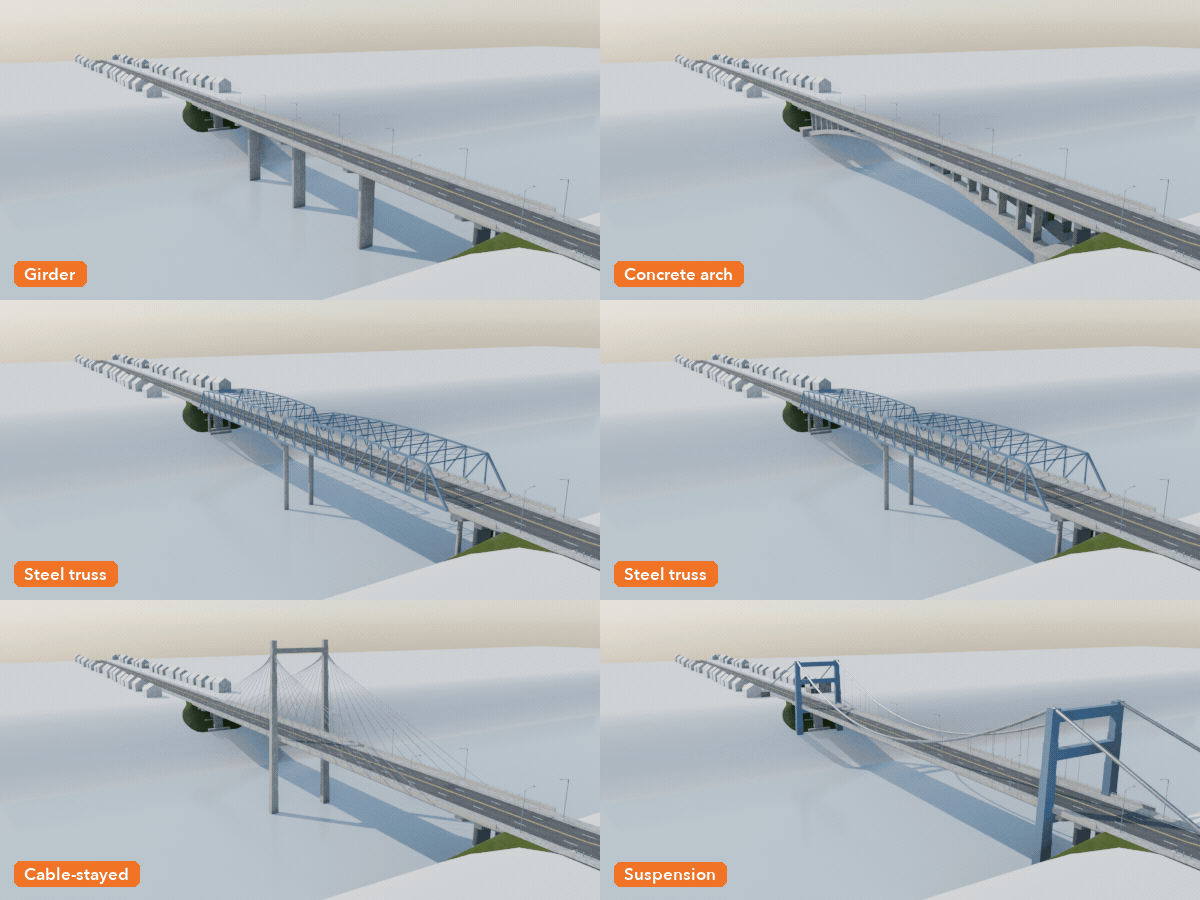
Five bridge types
Take a road across a valley and a bridge appears: girder, concrete arch, steel truss, cable-stayed or suspension, picked by span or set per road.
Sun, rain, snow and night
Wet reflective asphalt and puddles, snow on curbs with plowed banks, and street lights and signals that glow at night.
Features
- Draw Road tool: click on the terrain, snap to road ends and sides, raise points with the mouse wheel
- 11 road types: highway, expressway, boulevard, avenue, city street, residential, one-way, rural, ramp, old town, dirt
- Junctions with any number of roads: curb returns, sidewalk corners, crosswalks (zebra, ladder, lines), stop lines and turn arrows
- Traffic signals (US mast arms on the far side, or EU posts) with pedestrian heads, stop and yield signs, roundabouts
- Highway ramps: acceleration and deceleration lanes with lengths and tapers set per ramp, painted gores where roads meet at the same level, retaining walls where they part in height
- Shared decks: two carriageways side by side on one viaduct with a single median barrier and one row of piers
- Piers in four styles, embankments or retaining walls, decks with parapets, and five bridge types: girder, concrete arch, steel truss, cable-stayed and suspension
- Roads follow the terrain, and Fit Terrain to Roads grades the ground under them
- Street lights in four styles, guardrails, concrete barriers, speed signs, hydrants, benches, bins, bollards, manholes, storm drains, road studs and delineators
- Rain, snow and night looks, optional real lights at every lamp
- Procedural materials: aggregate, cracks, patches, wheel paths and oil, worn paint, pavers; no image textures
- Live: editing a curve rebuilds only the roads and junctions it touches
Requires Blender 4.2 or newer. Tested on Blender 4.2, 4.5 and 5.2 LTS.
Install in under a minute (Blender 4.2+)
- In Blender open Edit › Preferences › Get Extensions.
- Open the arrow menu at the top right and choose Install from Disk.
- Pick the downloaded zip. Do not unzip it.
Questions
Does it use image textures?
No. All geometry and materials are procedural, so there are no files to pack or relink. It works on Blender 4.2 and newer and is tested on 4.2, 4.5 and 5.2 LTS.
Can I drive on the left?
Yes. Set Drive On to Left in the Network panel: lanes, markings, signals, signs and junction arrows follow.
How do I make a bridge or an overpass?
Raise the road's curve points (G Z), or draw a road across a valley. Raised parts get an embankment, then piers; above the Bridge height a bridge appears, picked by span or set per road. Roads passing over each other at different heights don't connect.